Track an ICEGATE shipping bill through Services → Enquiry → Public Enquiries 2.0 → Document Status → Shipping Bill on icegate.gov.in. You need three inputs for a single-SB check: the Shipping Bill number, the Shipping Bill date, and the correct Location (port code), selected in that order to avoid a false “no record found” result.
Public enquiry requires no login. You can pull item-wise status, EGM status, drawback and ROSL details without an ICEGATE account. Logging in only matters when you need the digitally signed PDF or the full processing timeline.
- Go to the ICEGATE Shipping Bill enquiry page
- Pick the Location (port code) first
- Enter the SB number and SB date exactly as filed
- Submit, then read the returned status fields
Key Takeaways
Tracking an ICEGATE shipping bill requires selecting the correct port code first, then matching the exact SB number and date to the filing record.
| Point | Details |
|---|---|
| Use Public Enquiries 2.0 | Navigate Services → Enquiry → Public Enquiries 2.0 → Document Status → Shipping Bill for direct status checks. |
| Select port code first | Choosing the wrong Location is the top cause of “no record found” errors on valid filings. |
| No login for status checks | Public enquiry shows current status and EGM details; login is only needed for the signed PDF. |
| Watch the Error Code | Code 00 signals clean DGFT integration; any other code needs CHA correction before refiling. |
| Consider a broker for volume | Worldwideexpress files, monitors, and escalates shipping bills so your team isn’t chasing status manually. |
Table of Contents
- How to Track an ICEGATE Shipping Bill Step by Step
- Searching Multiple Shipping Bills by Date Range or IEC
- What Do the Shipping Bill Status Fields Mean?
- Why Isn’t My Shipping Bill Showing Up on ICEGATE?
- Where to Find ICEGATE Manuals and Web Forms Guidance
- Building a Reliable Shipping Bill Monitoring Routine
- A Freight Forwarder’s Take on Tracking Shipping Bills
- How Worldwideexpress Handles Shipping Bill Filing and Follow-Up
- Official ICEGATE Resources to Bookmark
- Frequently Asked Questions
- Sources
How to Track an ICEGATE Shipping Bill Step by Step
Most delays in resolving a stuck shipment trace back to one wrong click during this process, not a customs hold. Getting the sequence right the first time saves a support ticket.
- Select Document Status → Shipping Bill. This is the specific enquiry type built for SB-level tracking, separate from bill of entry tracking, which uses its own document status path for imports.
- Choose the correct Location from the dropdown before anything else. The port code determines which customs system the query hits, and picking the wrong one is the single most common reason a valid Shipping Bill returns “no record found” even when the filing is perfectly fine.
- Enter the Shipping Bill number exactly as it appears on your CHA’s filing acknowledgment. Extra spaces or a transposed digit will return nothing.
- Enter the Shipping Bill date in the format the field expects. A day/month mismatch is nearly as common a failure point as the wrong port code.
- Complete the CAPTCHA and submit. The result page loads item-wise details, current status, EGM status, and drawback and ROSL details for that specific SB.
[SCREENSHOT: ICEGATE Public Enquiries 2.0 landing page with Document Status menu expanded]
[SCREENSHOT: Shipping Bill enquiry form showing Location dropdown, SB Number field, and SB Date field]
That result screen is what most exporters actually need. But it isn’t the complete record. A public enquiry shows you current status, not the full processing history or customs officer remarks. If you need to see every stage the SB passed through, timestamps included, or you need to download the signed copy for a bank submission or a drawback claim, you have to log in with your ICEGATE credentials. The logged-in dashboard adds that processing timeline and unlocks the download button; the public version deliberately withholds both.
That distinction matters for how you plan your workflow. If a customer or your accounts team just wants confirmation that a shipment cleared, the public enquiry answers it in under a minute. If your bank wants the signed PDF for an export realization certificate, budget for the login step and possibly a wait if your digital signature session has expired.
Pro Tip: Before you assume a Shipping Bill has vanished from the system, double check two things: the port code matches where the SB was actually filed (not where the goods are loading, if those differ), and the date format matches what the field expects. Nine times out of ten, “no record found” is a data-entry mismatch, not a customs problem.
Searching Multiple Shipping Bills by Date Range or IEC
Checking one SB at a time works fine for a single query. It falls apart fast when you’re a broker managing forty exporters or a logistics manager auditing a week’s filings. Public Enquiries 2.0 has three views built for that.

Shipping Bill Summary pulls a list tied to your IEC or PAN, useful when you want every SB filed under one exporter code without hunting down individual numbers first. Search by Shipping Bill Date Range lets you set a start and end date plus a location filter, which is the fastest way to reconcile a month’s export activity against your internal shipment log. Shipping Bill (24 Hrs) shows everything filed at a given port in the last day, which brokers use to spot-check same-day filings before they leave the office.
A few input combinations return more useful data than others. IEC plus a tight date range narrows results to something you can actually review by eye. Location plus the 24-hour view works well when you’re confirming that a batch of same-day filings from your team all registered correctly. IEC alone, with no date bound, tends to return more rows than most people want to scroll through.
Here’s an example: a freight forwarder wants a daily summary for one exporter’s PAN. They select Shipping Bill Summary, enter the PAN, set the date range to the current day, and filter by the shipping location. The output lists every SB filed that day under that PAN, ready to check against the exporter’s own dispatch records.
When exporting or forwarding these results internally, capture the fields that actually matter for follow-up:
| Field | Why it matters |
|---|---|
| SB Number | Primary reference for every downstream query or dispute |
| Job No. | Links the SB to the CHA’s internal processing job |
| Job Date | Confirms when the CHA initiated filing |
| Customs Location | Confirms the correct port for future lookups |
| EGM Date | Marks when the carrier confirmed vessel/flight departure |
| Error Code | Flags integration issues needing correction |
Compliance teams that export these fields into a daily working sheet match LEO and EGM dates against bank remittances far faster than teams pulling records SB by SB when a query comes in.
What Do the Shipping Bill Status Fields Mean?
A returned status page is only useful if you know what each field is telling you to do next. Job No. and Job Date identify the CHA’s internal processing record, not a customs status; they’re a reference number, not an action item. Customs Location confirms the port your SB is registered under, which matters if you’re cross-checking against a different port’s activity by mistake.
LEO, or Let Export Order, is the customs clearance that permits goods onto the vessel or aircraft. Once LEO is given, customs has finished its part. EGM, the Export General Manifest, is filed by the carrier after departure and confirms the shipment actually left, a step that frequently triggers refund and incentive processing once it’s on record. Drawback, ROSL, and NOC fields show whether those specific benefit claims tied to the SB have been processed, are pending, or were rejected.
Status values you’ll commonly see, and what to do about each:
- SB Submitted: Filed, awaiting assessment. No action needed yet.
- Under Assessment: Customs is reviewing valuation or classification. Wait, unless it’s been open for days beyond normal turnaround at that port.
- Query Raised: Customs needs clarification. Contact your CHA immediately; this is time-sensitive.
- Examination Pending: Goods are scheduled for physical inspection. Confirm timing with your CHA so loading isn’t delayed.
- Goods Examined: Inspection complete, awaiting clearance decision.
- LEO Given: Cleared for export. Confirm the carrier has loaded on schedule.
- EGM Filed: Departure confirmed by the carrier. Trigger your refund and incentive paperwork now.
- Rejected: Something failed validation. Check the Error Code before assuming it’s a documentation problem.
The Error Code field is where DGFT integration issues surface. Error Code 00 generally signals a clean handoff between ICEGATE and DGFT systems. Any other code points to a specific sync or validation failure, and it’s worth checking the DGFT Shipping Bill Integration Status enquiry on ICEGATE before contacting anyone, since the code itself usually narrows down what needs fixing.
A Shipping Bill sitting at “Query Raised” for three days isn’t a system glitch. It’s customs waiting on a document or clarification only your CHA can provide, and every day it sits unanswered is a day your goods aren’t moving.
Why Isn’t My Shipping Bill Showing Up on ICEGATE?
Work through these checks in order before assuming something is actually broken:
- Confirm the port/location matches where the SB was filed, not where goods are currently sitting.
- Confirm the SB date format matches what the field expects (day, month, year order varies by field version).
- Confirm the SB number against your CHA’s original filing acknowledgment, character for character.
- Check whether ICEGATE is showing a temporary portal notice; scheduled maintenance windows do cause short outages.
If those four checks come back clean and the SB still won’t show, the issue is likely DGFT integration, not the SB itself. Use the DGFT Shipping Bill Integration Status enquiry on ICEGATE and read the Error Code it returns. A non-00 code usually points to a specific data mismatch between the two systems that your CHA can correct and resubmit.
Knowing who to contact next saves a round of wasted emails. If EGM is missing after the vessel has clearly sailed, that’s a carrier problem. Reach out to them directly rather than your CHA, since EGM filing is the carrier’s responsibility, not the broker’s. If a query is raised or a status looks stuck at assessment, that’s a CHA issue: ask them to check for pending clarifications or refile if a data entry error caused the rejection.
When you do escalate, keep the request specific. A short note should cover who you are, the SB number and date, the exact status shown, and what you need (refile, EGM confirmation, or a response to a customs query). Attach a screenshot of the ICEGATE result page so there’s no ambiguity about what you’re seeing.
Pro Tip: Screenshot every ICEGATE query result the moment you pull it, along with the timestamp. When a drawback or refund claim gets questioned months later, having a dated record of what the portal showed at the time shortens the adjudication process considerably.
Where to Find ICEGATE Manuals and Web Forms Guidance
The ICEGATE user manual for Web Forms documents the Shipping Bill preparation form directly, including which user roles can create, save, resume, and file a bill through the web interface rather than through a CHA’s software. It’s worth reading before you ask your team to switch filing methods, since role permissions differ between exporter and CHA logins.
Broader SOPs and guideline pages live under ICEGATE’s guidelines section, covering everything from registration to document formats. For uploading supporting paperwork alongside a filing, e-Sanchit handles that step, and guidance on both e-Sanchit uploads and digital signature setup is hosted on the main ICEGATE services page. If your team is preparing bills in-house for the first time, start with the Web Forms manual before touching the live form.
- Web Forms manual for Shipping Bill preparation and role access
- ICEGATE guidelines section for SOPs and process updates
- e-Sanchit for document uploads
- Digital signature setup guidance on the ICEGATE services page
Building a Reliable Shipping Bill Monitoring Routine
Tracking one SB is easy. Tracking forty across three ports without dropping one takes an actual routine, and most exporters build it the hard way, after a missed EGM delays a refund by weeks.
A workable daily checklist assigns ownership clearly: the CHA confirms LEO status by midday for anything filed that morning, and the exporter or broker confirms EGM within 24 hours of the vessel or flight’s scheduled departure. Waiting longer than that to check EGM is how refund claims quietly slip a filing cycle.
Record-keeping matters just as much as the checking. For every SB, archive the signed PDF, the LEO date, the EGM date, any Error Codes returned along the way, and copies of correspondence with the CHA or carrier. When a bank or DGFT officer asks for documentation months later, having it organized by SB number turns a half-day search into a five-minute pull.
- CHA confirms LEO status by midday for same-day filings
- Exporter/broker confirms EGM within 24 hours of departure
- Archive signed PDF, LEO date, EGM date, and Error Codes per SB
- Log all correspondence tied to refund or incentive claims
A Freight Forwarder’s Take on Tracking Shipping Bills
One recurring pattern stands out from years of watching exporters chase “missing” shipping bills: the SB almost always exists, filed correctly, sitting exactly where it should. The problem is usually a port code selected out of habit rather than checked against the actual filing location. Correcting that single dropdown, then saving the signed PDF the moment LEO comes through, has resolved more refund-claim headaches than any escalation call ever has.
If your team handles more than a handful of shipments a month, assign one named person to own SB follow-ups. Ambiguity about who’s checking status is worse than any portal quirk.
How Worldwideexpress Handles Shipping Bill Filing and Follow-Up
Chasing status updates across multiple ports eats hours a week that most exporters would rather spend on actual trade, not portal navigation. Worldwideexpress handles the filing, monitoring, and EGM follow-up directly, so you get a status update from a person who already knows your shipment’s history instead of a fresh login session every time.
Worldwideexpress’s customs brokerage team files shipping bills, tracks LEO and EGM progress against your shipping schedule, and flags Error Codes or DGFT integration issues before they turn into a stalled refund claim. That proactive monitoring, checking status before you have to ask, is the practical difference between managing ICEGATE yourself and having a broker who already knows which port code and filing details apply to your account. Compliance stays in the hands of people who work with these systems daily, not occasionally.
If your team is spending more time troubleshooting “no record found” errors than moving freight, it’s worth a conversation. See how Worldwideexpress’s customs brokerage services handle shipping bill filing and status monitoring, and request a consultation to find out what proactive tracking would look like for your export volume.
Official ICEGATE Resources to Bookmark
- ICEGATE enquiry index for the full Public Enquiries menu
- Shipping Bill Tracking on the National Portal for the official service summary
Frequently Asked Questions
Do I need an ICEGATE login to check shipping bill status?
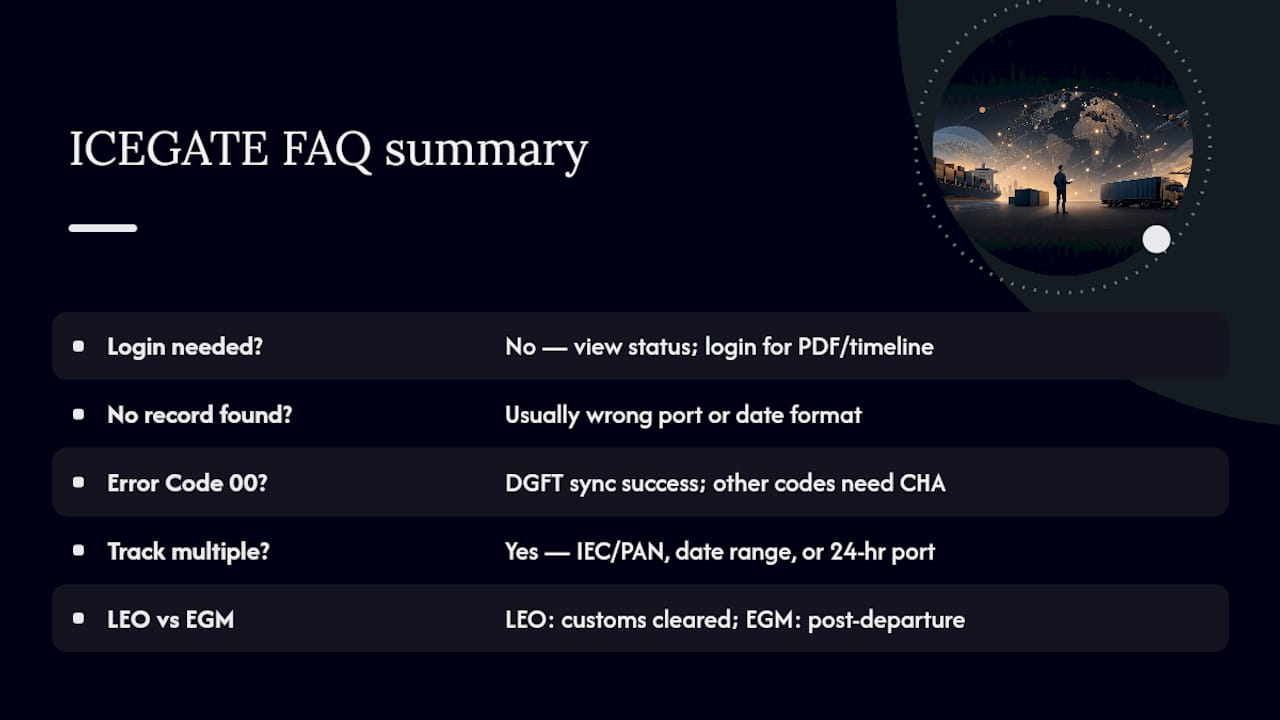
No. Public enquiry shows current status, EGM status, and drawback details without logging in. You only need credentials to download the digitally signed PDF or view the full processing timeline.
Why does ICEGATE say “no record found” for a valid shipping bill?
The most common cause is selecting the wrong Location or port code. Confirm the SB was filed at the port you selected, and double check the date format before assuming the filing has a problem.
What does Error Code 00 mean on ICEGATE?
Error Code 00 generally indicates successful DGFT integration. Any other code points to a specific sync or validation issue that typically needs your CHA to correct and resubmit.
Can I track multiple shipping bills at once on ICEGATE?
Yes. Shipping Bill Summary lets you search by IEC or PAN, Search by Date Range filters by start and end dates, and Shipping Bill (24 Hrs) shows all bills filed at a port in the last day.
What’s the difference between LEO and EGM status?
LEO (Let Export Order) confirms customs has cleared the goods for loading. EGM (Export General Manifest), filed by the carrier after departure, confirms the shipment actually left and often triggers refund processing.
Sources
Recommended
- Step-by-step guide to exporting goods: compliance to shipment – Worldwide Express, Inc.
- U.S. Customs Export Declaration Form: Complete Filing Guide – Worldwide Express, Inc.
- EDI Tracking for Logistics Pros: A 2026 Guide – Worldwide Express, Inc.
- Master Export Shipping Documentation for Success – Worldwide Express, Inc.